The study list
Patients: If you log in as a patient with a reference number, you will be directed to the respective request (see DeepUnity PACSonWEB study page).
Registered users: If you log in with an account, you will be directed to the study list. Here you will see a list of all the studies you have access rights to view.
You can have access rights on a study because:
• you are the requesting physician (or CC physician);
• a colleague in your group practice is the requesting physician and studies are shared within the group practice;
• you have added the study to your list using the reference number (See Adding a study);
• the study was shared with your user, your group or your medical department (See Sharing studies from the study list); or
• you are member of the user group or admin group of a radiology department.
By default, the study list only contains studies that are available in the central DeepUnity PACSonWEB cloud environment.
• A medical imaging department can opt to process the images also locally by a local image cache (see Local image cache) to make the images available faster within the local network.
• If your user has access rights to such a local image cache, the study list will also contain all studies that are available through the local image cache.
|
Tip |
|

|
For Mammograms the images will remain on DeepUnity PACSonWEB for a default period of three years. For other studies, images will remain on DeepUnity PACSonWEB for one year.
To consult an older study, contact the radiology service.
|
The study list
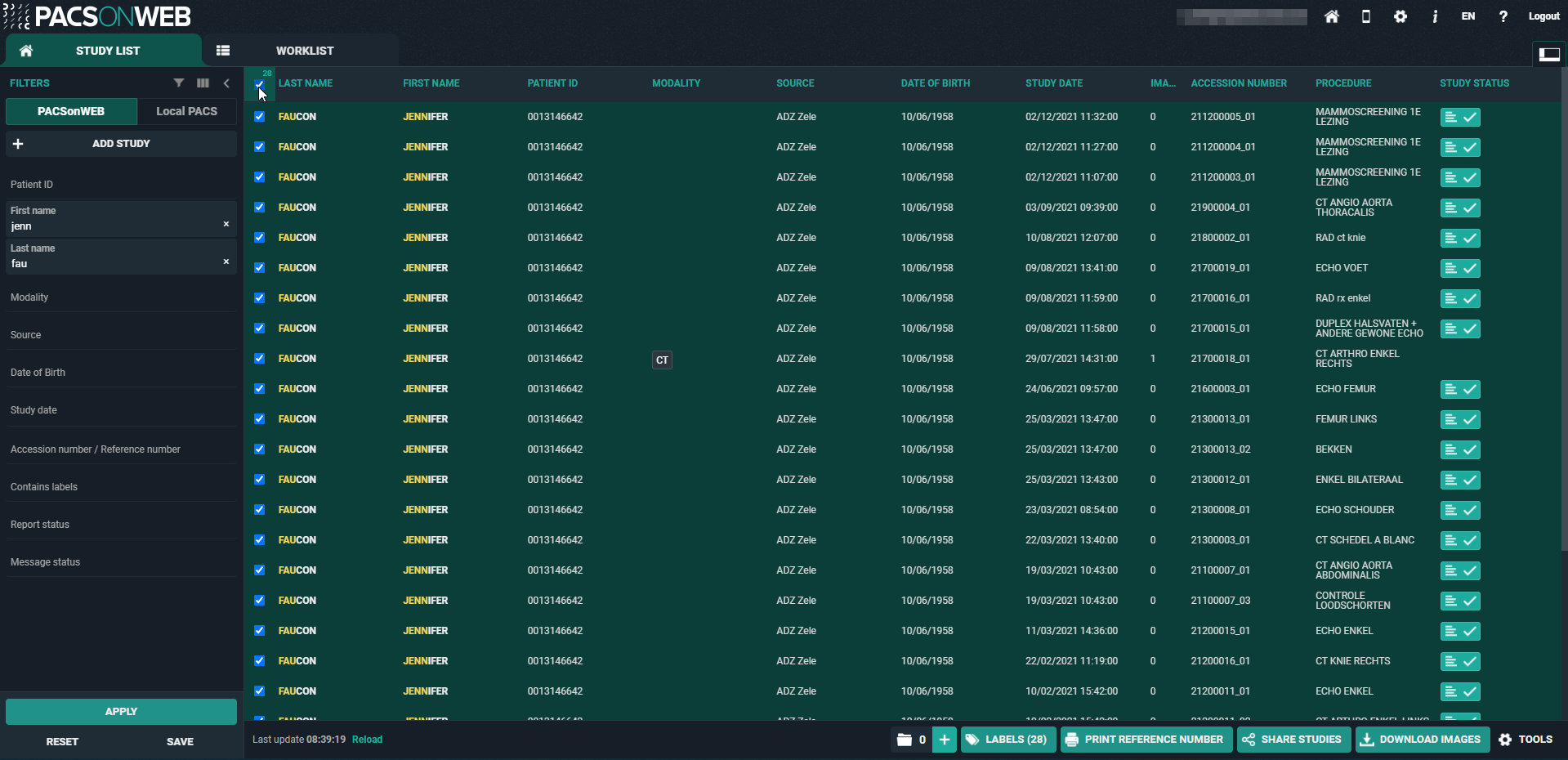
• The list reloads automatically every 5 minutes.
◦ To refresh the list manually, click Reload at the bottom of the page.
• The list is limited to the 100 most recent studies.
◦ To display more specific results or look for older studies, you can use filters.
• You can select all the studies that are shown in your study list.
◦ To select all studies, check the top box in the first column.
◦ This box will also display the number of studies selected.
Opening a study from the study list
The study list displays all the studies you have access to. When you click on a study from this list, the study will be opened by default in the active tab.
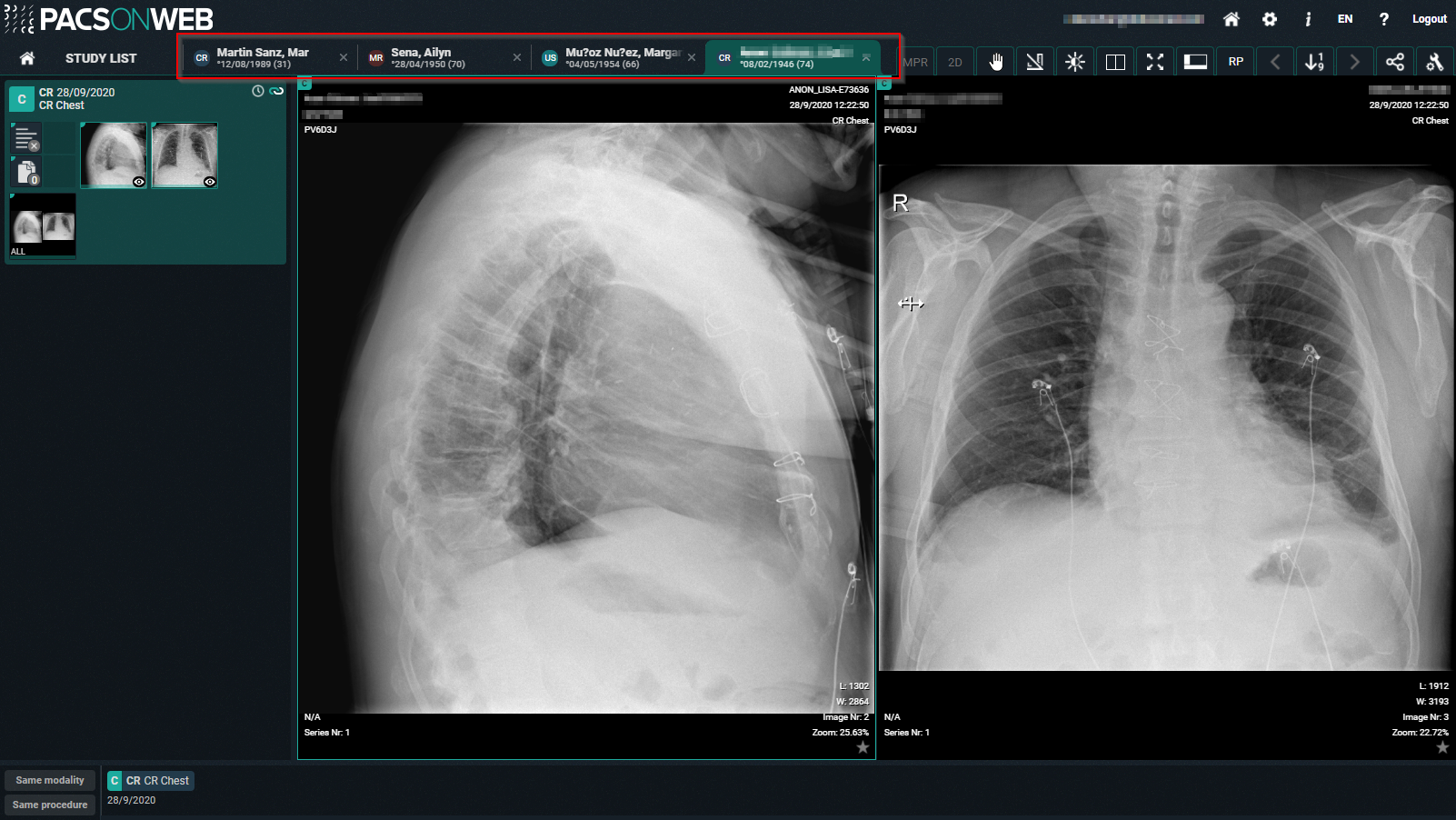
Tip | |
| If the related setting has been activated for your account, you can open different studies within the same browser tab. Clicking on a study from the study list will open that study in the active window and tab. |
To open a study from the study list in a new tab, you can use any of the following options:
• Ctrl + Shift + left click on the study
• Ctrl + left click on the study
• Click on the study using the scroll wheel