Installing the DeepUnity PACSonWEB Application
For setting up the DeepUnity PACSonWEB Application, you first need to download it and then run the installer. This will install the application for multi-monitor use as well as the auto update feature on your computer.
1. Download the DeepUnity PACSonWEB Application via the browser. The easiest way to download the installer is via your DeepUnity PACSonWEB environment.
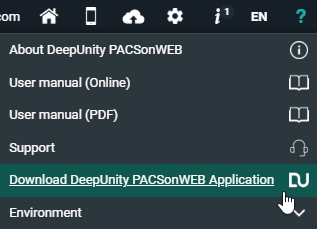
a. Click on the help icon in your top toolbar.
b. Select Download DeepUnity PACSonWEB Application.
2. Click on the downloaded .exe file to run the installer.
3. Choose your install mode.
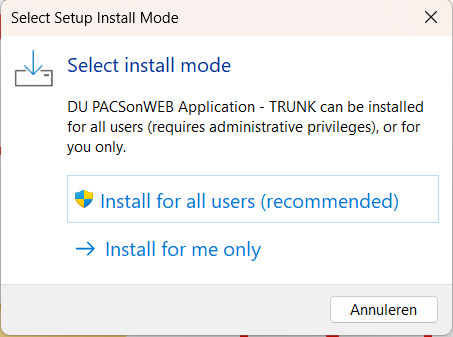
◦ Install for all users (recommended):
This will install the binaries in the Program Files folder. A DeepUnity PACSonWEB Application shortcut will be created for every user.
Note | |
 | For this option, you need to have admin rights. |
◦ Install for me only:
This will install the binaries in the AppData folder. A DeepUnity PACSonWEB Application shortcut will be created just for the current user.
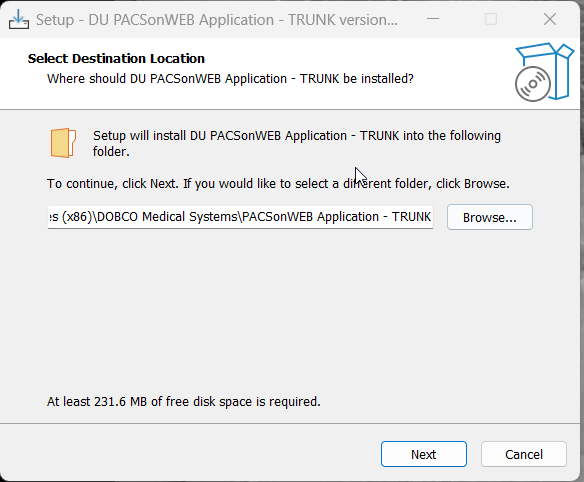
4. Choose the directory for the files to be installed and click Next.
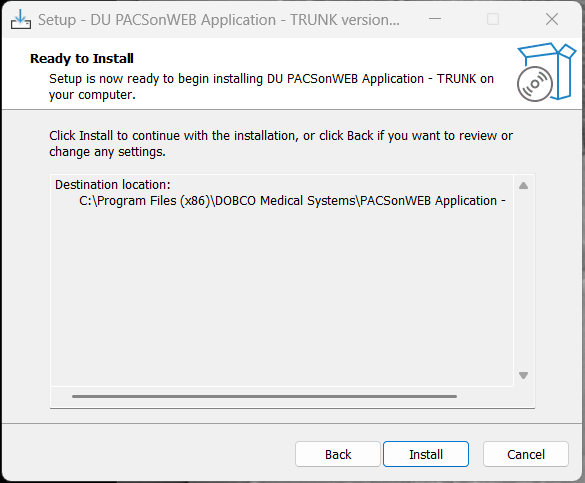
5. Review your chosen configuration and click Install.
6. Done!
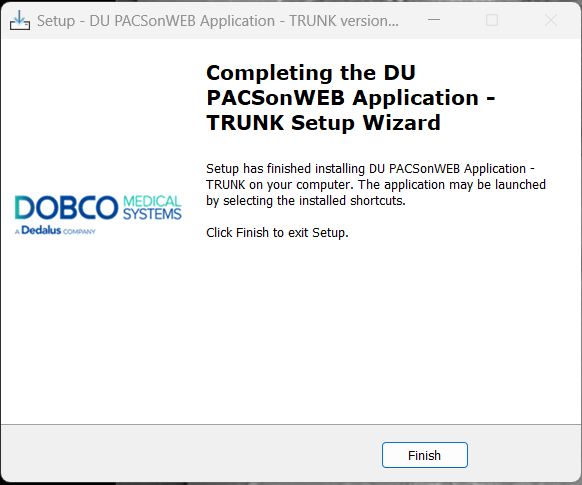
Now you (and all other users if you chose that option) will have a new shortcut in your Start Menu. After clicking the shortcut, you will see the following screens:
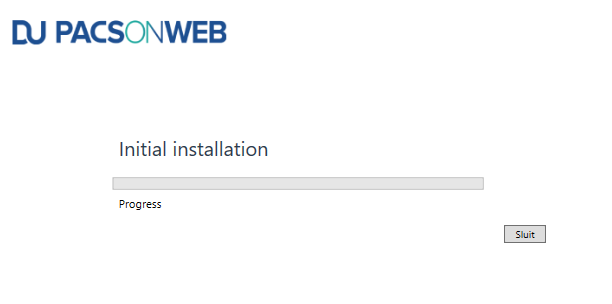
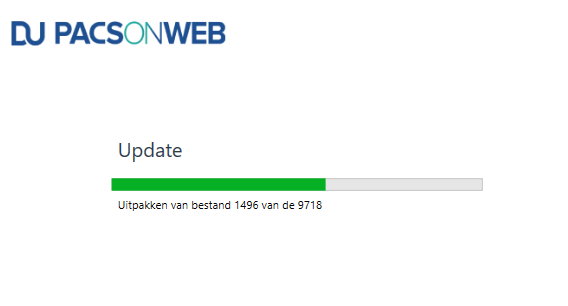
When this update is complete, you will be presented with the DeepUnity PACSonWEB login screen and you can proceed to login.