Linking your mobile device to DeepUnity PACSonWEB
To link your mobile device to DeepUnity PACSonWEB for two-factor authentication, you can either use the DU PACSonWEB mobile app or a third-party authenticator app.
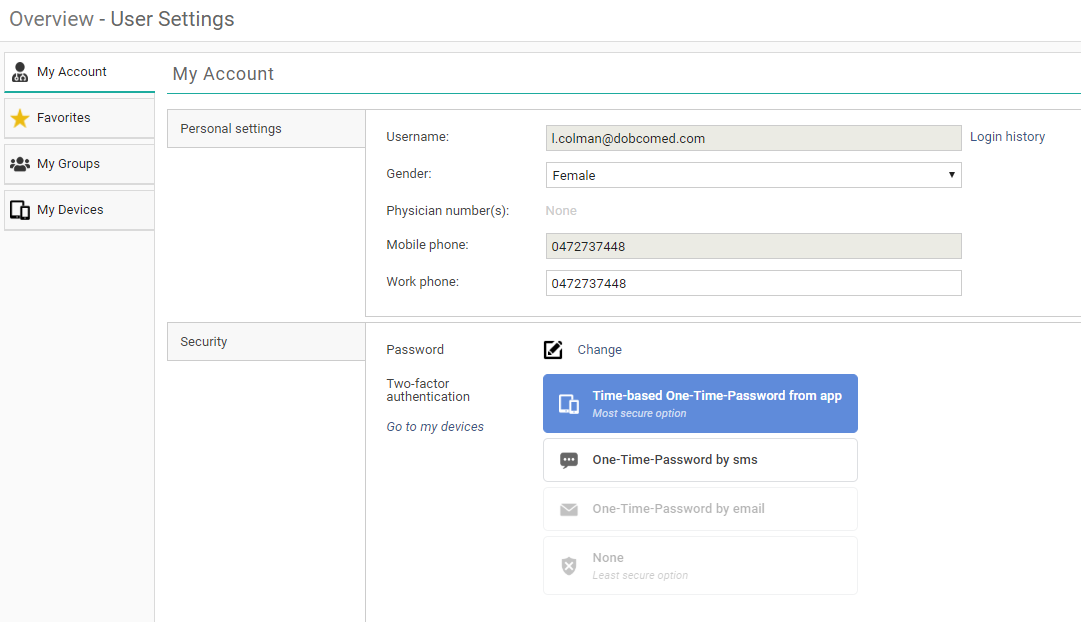
1. Login to DeepUnity PACSonWEB.
2. Navigate to User Settings > My Account > Security.
3. Select the option Time-based one-time password from app.
4. Click CHANGE TWO-FACTOR AUTHENTICATION TYPE.
A pop-up window opens displaying a QR code to link your device.
5. Open your authenticator app on your mobile device and scan the QR code.
◦ For the DeepUnity PACSonWEB mobile app, confirm your linked device by tapping Login on your mobile device.
◦ For third-party authenticator apps, confirm your linked device by entering the numeric code from the app.
After successfully linking your device, it will be listed as a trusted device in the My devices tab in your DeepUnity PACSonWEB user settings.